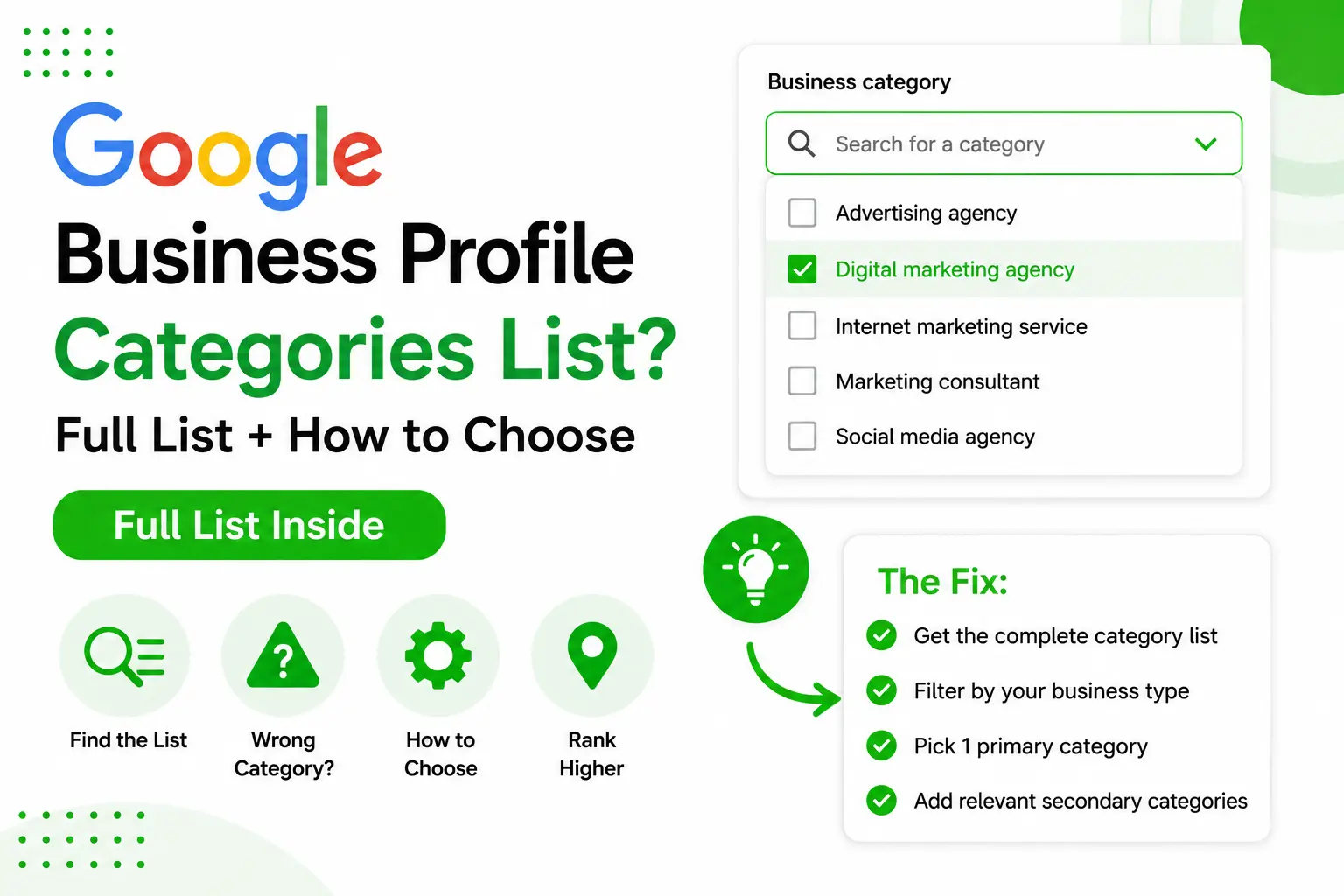
I found a simple way to get the complete Google Business Profile categories list in one place, and then use AI to filter it down to the exact category that actually matches what your business offers.
Why your GBP category choice matters
Your primary category is one of the strongest signals Google uses to decide who to show your business to in local search and Google Maps. Pick the wrong one — or one that’s too generic — and you end up competing with businesses that have nothing to do with what you do. Pick a specific, accurate one, and you’re suddenly ranking for searches from people who actually want what you sell.
This is why getting this one field right is worth 5 minutes of focused research.
Part 1: How to find the full Google Business Profile categories list
Google doesn’t give you an easy, browsable list inside the GBP dashboard — you only see suggestions as you type. To see the full picture, you need to go outside Google.
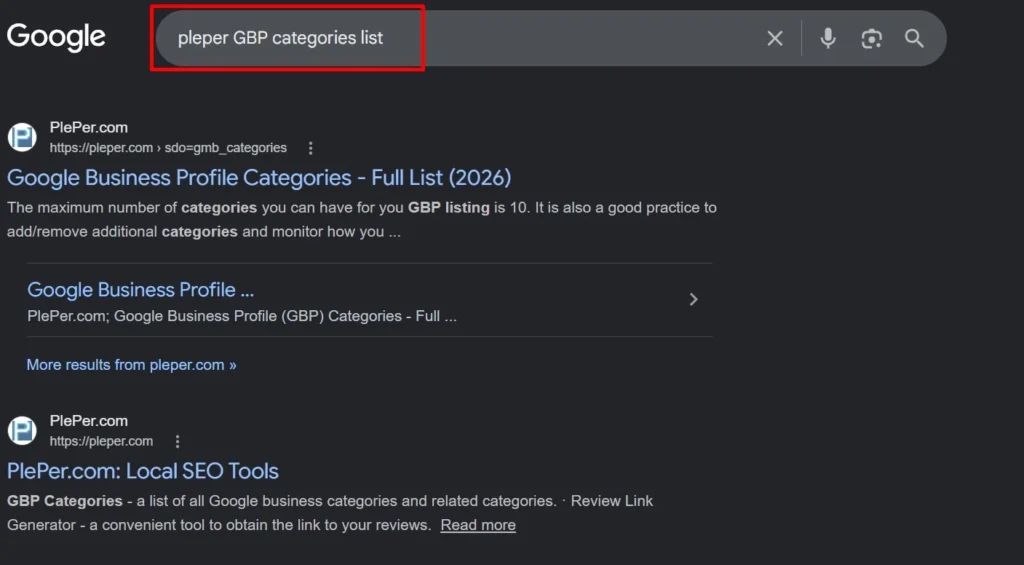
Step 1: Search for the Pleper GBP category list
Open your browser and search for “Pleper GBP category list” or “Pleper Google Business Profile categories.” Pleper maintains a complete, country-by-country list of every category currently recognized by Google.
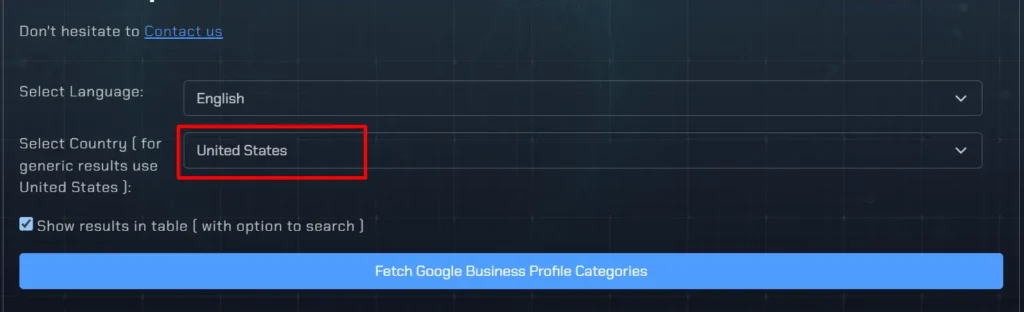
Step 2: Select your country
On that website, select your country and click Next. Category availability can differ slightly by country, so this step ensures you’re working with the exact set available for your listing.
Step 3: Extract the list into a usable format
Scrolling through thousands of categories manually isn’t practical. Instead, copy the URL of that list page and use an AI web scraper or export it directly into an Excel sheet. Now you have the complete, official list sitting in front of you — something Google itself doesn’t hand you directly.
Part 2: How to choose the right category from the list
Having the full list is only half the job. Here’s how to actually pick the right one for your business without guesswork.
Step 4: Upload the list to AI and describe your business
Take the Excel sheet you extracted and upload it to an AI tool (such as Claude, ChatGPT, or Gemini). Describe your business clearly and specifically, then ask it to shortlist the best-matching categories from that specific file.
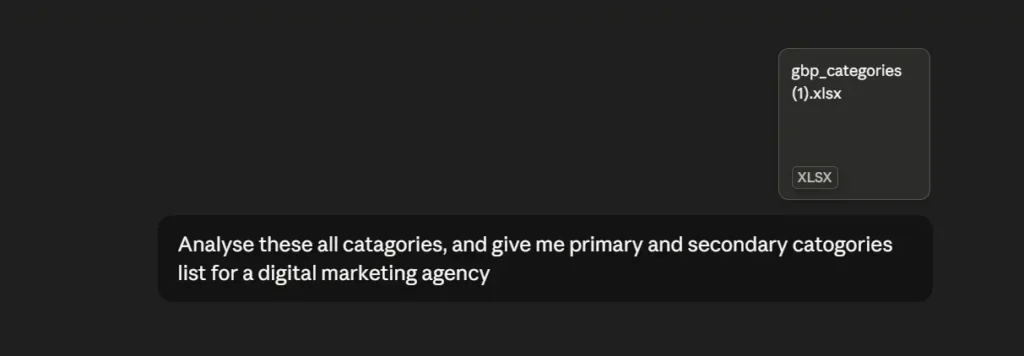
For example, if you run a dental clinic in Madurai that specializes in pediatric dentistry and dental implants, say exactly that, instead of just “dental clinic.” The AI will cross-reference your services against the thousands of official categories and surface niche options you would have never thought to type into the search box.
Step 5: Pick one primary category and a few secondary categories
From what the AI shortlists, choose:
- One primary category — the single category that most accurately describes the core of your business. This carries the most weight in local ranking algorithms.
- Secondary categories (up to 9, but usually 2-4 is the sweet spot) — categories that cover other major services you provide. Don’t add secondary categories just to fill space — only add ones that genuinely describe an active part of your business.
Step 6: Apply the categories to your GBP listing
Go to your Google Business Profile dashboard, set your primary category first, then add your secondary categories one by one. Save the changes.
🚫 Common Mistakes to Avoid (Deepanraj Advice)
- Copying a competitor’s category — they may have picked the wrong one too, and you’d just repeat their mistake. Analyze independently.
- Going too broad — e.g., choosing “Store” instead of “Orthopedic Shoe Store.” Specificity wins local pack rankings.
- Keyword stuffing secondary categories — adding unrelated categories dilutes your profile’s topical authority in Google’s eyes.

Written by Deepanraj
Digital Marketing Consultant in Madurai with 5+ years of experience helping local and national businesses dominate Google Search, Google Ads, Meta Ads, and AI-driven Search (AEO & GEO).
Work with Deepanraj →