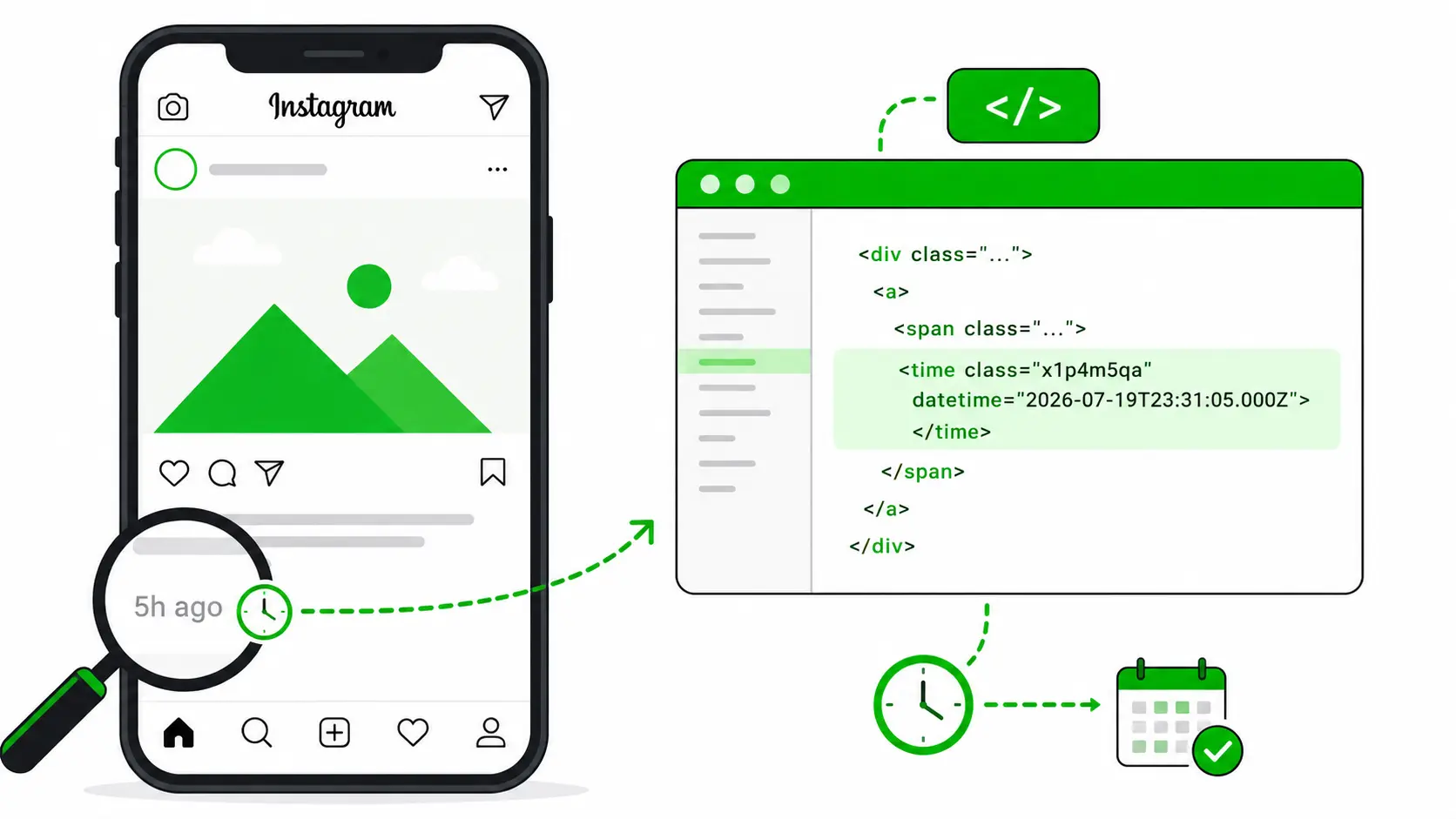

Ever looked at an Instagram post and seen “5 hours ago” or “2 days ago” and wished you knew the exact time it was posted? Maybe you’re tracking a competitor’s posting schedule, doing a social media audit, or just trying to figure out when a viral post actually went live. Instagram doesn’t show this by default — but there’s a simple, free trick to find it using your browser.
This method works on any public Instagram post, without any paid tool or third-party app.
Why the Exact Post Time Matters
If you work in digital marketing or social media, relative timestamps like “5h” aren’t very useful. Knowing the exact date and time helps you:
- Study when competitors post for better engagement (useful for content strategy and social media planning)
- Verify when a post actually went live during a launch or campaign
- Cross-check claims about “recently posted” content
- Track account activity patterns over time
Instagram hides this on purpose to keep the interface clean, but the actual timestamp is still sitting in the page’s code — you just need to know where to look.
Step-by-Step: Find the Exact Instagram Post Time
Step 1: Open Instagram on Desktop
This trick only works on a laptop or desktop browser (Chrome, Edge, or Firefox), not the mobile app. Go to instagram.com and open the post you want to check.
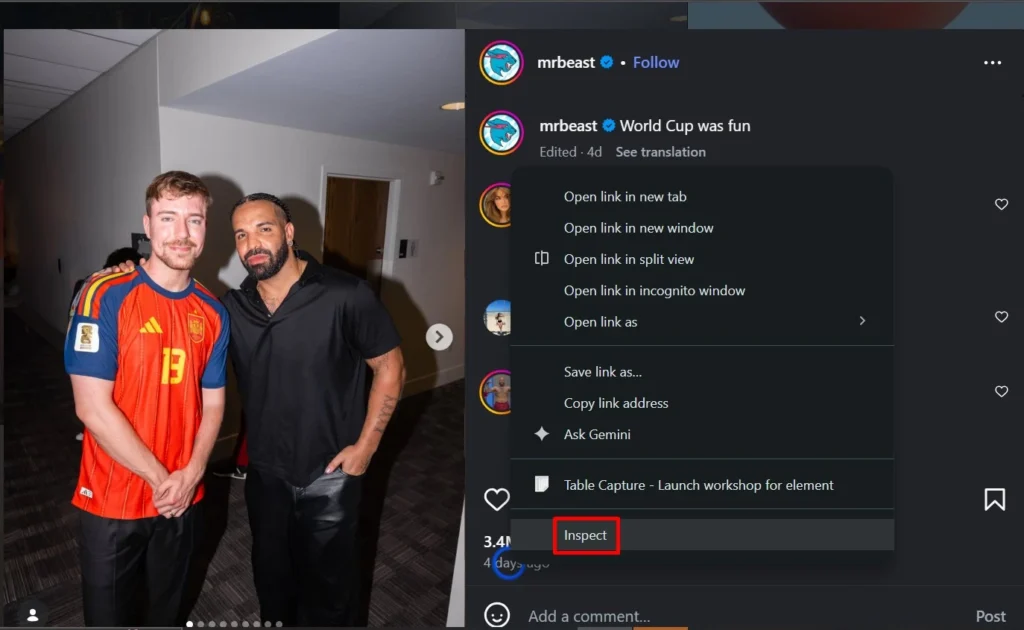
Step 2: Right-Click and Select "Inspect"
Right-click on the relative time shown below the post (like “5 hours ago”) and click Inspect. This opens the browser’s Developer Tools panel.
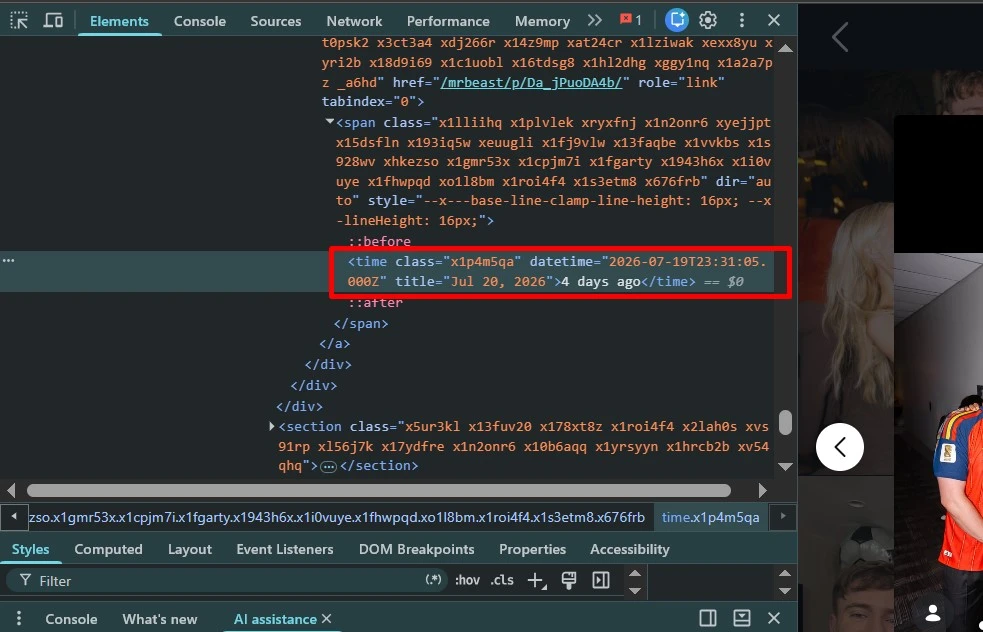
Step 3: Find the
In the code panel that opens, look for a <time> HTML tag. Inside it, you’ll see an attribute called datetime that looks something like this:
datetime="2026-07-22T09:14:35.000Z"This is the exact date and time the post was published — stored in the page’s code, even though Instagram only displays “5 hours ago” on screen.
Step 4: Convert UTC Time to IST
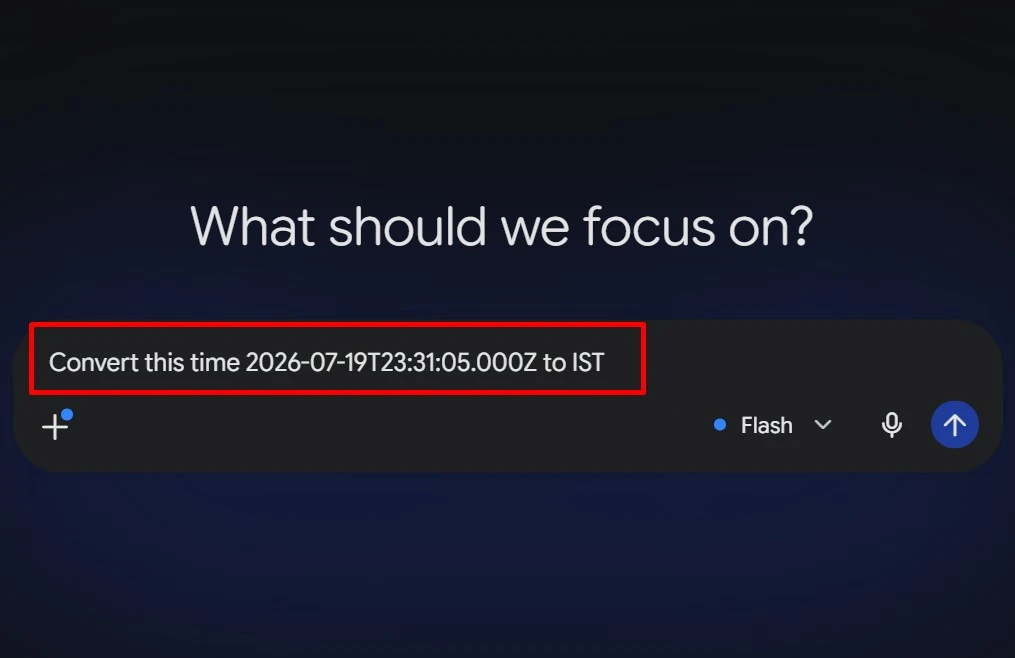
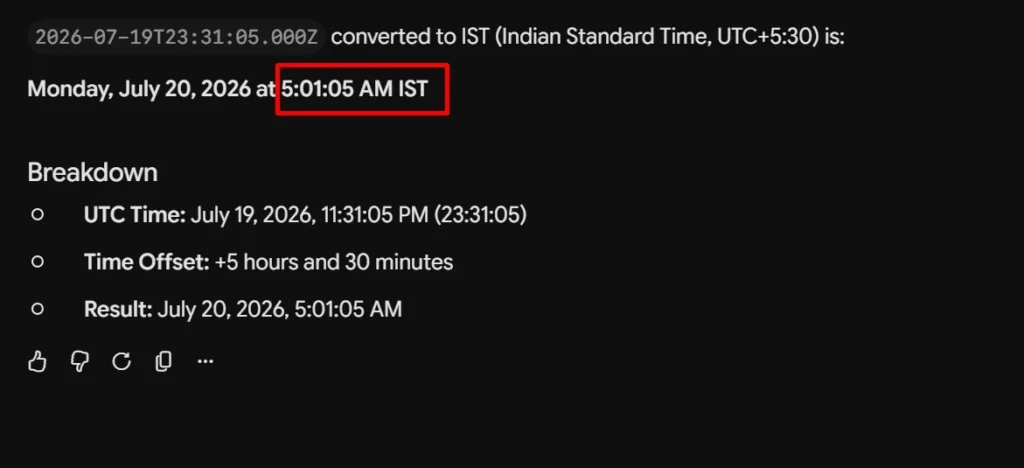
Notice the “Z” at the end of the timestamp — that means it’s in UTC (Coordinated Universal Time), not your local time. The easiest way to convert it is to just ask an AI tool like Gemini or ChatGPT:
- Copy the datetime value (e.g., 2026-07-22T09:14:35Z)
- Open Gemini or ChatGPT and paste a prompt like: “Convert 2026-07-22T09:14:35Z from UTC to IST (or your preferred timezone)”
- It instantly gives you the exact date and time in Indian Standard Time — no manual math needed
This is faster and less error-prone than adding 5 hours 30 minutes by hand, especially if you’re checking multiple posts.
Now you know the exact date and time the post was uploaded, down to the second.
Final Thoughts
It’s a small trick, but genuinely useful if you’re in marketing, doing competitor research, or just curious. No extensions, no paid tools — just your browser’s built-in Developer Tools. If you’re into these kinds of practical, real-world marketing and browser tricks, I share more of these on [my LinkedIn and Instagram] as I discover them while working.
Questions I Get Asked Most
Does this work on the Instagram mobile app?
Is this against Instagram's terms of service?
Why does Instagram show "5 hours ago" instead of the real time?
Can I use this to check my own post's exact upload time?
Do I need any extension or paid tool for this?
Why is the timestamp shown in UTC instead of my local time?
Also Shared On:
Instagram shows "5h ago" but hides the exact timestamp.
— Deepanraj K R (@Deepanraj_k_r) July 24, 2026
Found it though; it's sitting in the page's HTML.
Right-click the time → Inspect → look for the <time> tag → there's your exact datetime
Ask ChatGPT/Gemini to convert UTC → IST, and you're done #deepanraj pic.twitter.com/LVWzHaHQzi